Wednesday, 23 March 2016

Implicit Sharing


Many of us who work on Hyperion Essbase on a regular basis know what “Implied Sharing” is (Interview questionnaire 101 for Hyperion has this as a FAQ…Some of the other questions are dense-sparse, number of blocks and so on…Have been on both sides of the fence so these are the questions we generally use to ease into the abstract world that we inhabit). 

Implied Sharing is when the value of a child rolls up to a parent if:-

  • ·         The parent has only one child.
  • ·         The parent has only one child that consolidates to a parent.
Implied sharing by itself is one thing…But if you use SmartView along with implied sharing, you can get some very cool results…

I have created the below hierarchy in the Entity dimension to mimic the implicit sharing rollup.

So I have IE11111 rolling up to IE1111 which rolls up to IE111 and so on.


Now, I will do a lock-&-send of dummy data on the level-0 member as shown in the next snapshot. (The number has a significance… Any physics enthusiast will know it right away)


After doing the lock-and-send, the retrieval shows how implied sharing works. So you have the data rolling up till the parent without any consolidation being run.


I now change the data value as shown in the below snapshots to test what happens if I do a lock-and-send on all the cells…If you observe, I have kept all the values different to see which value takes precedence…


After lock-and send and retrieve, you can observe that it took the value of the leaf level and ignored the value of all the remaining members as shown in the below snapshot. ( There is a mistake here… Human error is just as likely… An example of a bad test case, ideally the last value should not be 137, it is actually saving the value of Implicit_Entity to the level 0 member)


Now, I do a data input of all zeros into the application as shown in the below snapshot.


After doing a data input of zero, I change one of the upper level members to 137 and do a lock-and-send as shown in the below snapshot.


After retrieval, the value of 137 is now implicitly shared throughout as shown in the below snapshot…


Even if I change at any upper level as shown in the below snapshot, after a lock and send of 0, the implicit sharing will reflect correctly as shown in the below snapshot.


The thing to remember is that, if you have a data grid where you are doing a manual lock-and-send, and it has implicitly shared members as well, you may get different results based on the order in which the members are present.

Check out the below snapshots.
I did a lock and send of 45, 46 and 47 on the Generation 1, Generation 2 and Generation 3 members.


But, it reflects the last value in retrieval i.e. 47 is now shared across the implicitly shared hierarchy.


I reverse the order as shown in the below snapshot and the last row value (in this case, generation 1 value) gets reflected across the sheet.


So, if you have a sheet where you are doing manual lock and send, and it spans thousands of rows, you can get a variance, simply because of implied sharing and the order in which the data grid is created.

Sunday, 20 March 2016

Patent Number 5359724 – Method and Apparatus for storing and retrieving Multi-dimensional data in Computer memory


I love history. I guess there is something about the dusty stories that strikes a chord with me somewhere. I love reading stories on how internet came into existence, how Enigma was cracked and the famous browser wars. The stories are made interesting because at the back you have people like us who made it possible. And people are driven by passion and the traits that define their personality. 

On March 30, 1992, a patent was filed bearing application number 860443 by Robert J Earle. It was titled “Method and apparatus for storing and retrieving multi-dimensional data in computer memory”. The assignee for the patent was a company based in Santa Clara, California called Arbor Software Corporation. The patent was granted on October 25, 1994. This was the patent for Hyperion Essbase as we knew it then.

Here is the link where you can check out the patent.

The good thing about the patent is that if you check the section about the other publications that the author has referred to you will see a book called as “The Art of Computer Programming” by Donald E. Knuth. Any computer science graduate has this book as a first introduction into the world of computer programming. This book has not changed a lot in all these years and is a wonderful book to refer to. So somewhere, although in a different time and place, Mr. Earle and I have both turned the same pages of the book and took inspiration. 

The patent is a wonderful read and I am reading all of the associated patents to basically get in touch with a product that I have worked with for almost five years. Will keep you posted on the same.

Friday, 18 March 2016

SQuirrel SQL Client


Installation of Squirrel SQL Client

In this blog I am going to talk about the installation and configuration of Squirrel SQL client that basically gives administrators a Java UI to manage databases.

SQquirrel SQL Client basically uses JDBC to interact with databases using a JDBC driver. So if you have done programming in Java Swings, you are going to be right at home with this application.

The client can be downloaded from www.squirrelsql.org

The first thing that I did was downloaded the Squirrel SQL client that came as an executable jar file as shown in the below snapshot


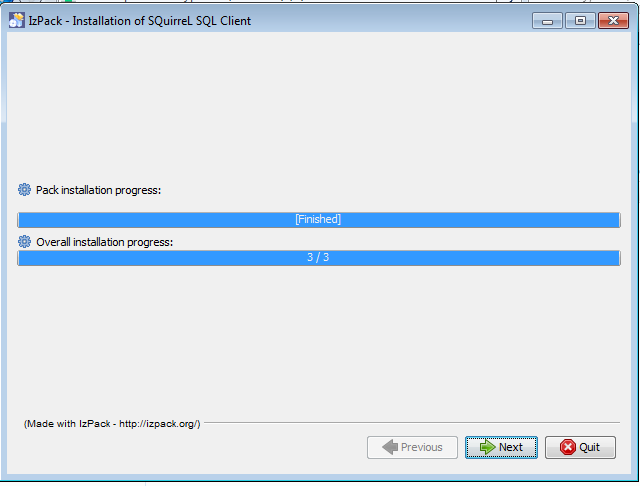
Once the Squirrel SQL client Jar file has been downloaded, you can just double click it to start the process of the software install. The snapshots are present below and they are pretty straightforward and do not need a lot of explanation.


Configuring Drivers for Squirrel SQL Client:-
Now I will show you the steps on how to configure the Squirrel SQL client for Oracle database. Navigate to the folder where you installed the Squirrel SQL Client. You will find a “squirrel-sql.bat” file that can be used to launch the client in a Windows environment. There is also a squirrel-sql.sh file that can be used to launch the SQL client in a Unix/Linux environment…

Double click on the batch file to start the Squirrel SQL client.


The above screen is the first screen that will be visible when we login to Squirrel SQL client. The UI has its own nomenclature and I will try my level best to explain it.

Drivers allows you to configure the driver details for native databases that are JDBC compliant. Since I have Oracle installed on my system, I will show you the configuration of the driver here.

Aliases are basically an alias name for connection information like databases, drivers, configurations and so on.

Click on the Drivers button in the above screenshot, to display the list of associated drivers in the system.


Go to the Oracle Thin Driver in the shown list and click on the edit button as shown in the below snapshot.


A popup screen appears that will ask for details of the connection to the database. These can be entered as shown in the below screenshot.

The Example URL can be explained as follows:-

  • jdbc.oracle.thin is the name of the driver.
  • localhost is the name of the server where Oracle is installed
  • 1521 is the default port on which Oracle is installed.
  • XE is the default service name of the Oracle database.


The name of the driver is Oracle Thin Driver and the class name for this is oracle.jdbc.driver.OracleDriver.
For those of you who are familiar with JDBC, this would be very simple since these are the basic steps that we follow while connecting to an Oracle database using JDBC.

Since the jar file that implements the OracleDriver class is not pre-shipped with the Squirrel SQL client, we would have to add it manually using the “Extra Class Path” pane as shown in the below snapshots.


Click on the add button and browse to the path where Oracle JDBC jar is present… In my case I have this file on my desktop… If you have Oracle installed on your system this would be at the following path
C:\oraclexe\app\oracle\product\11.2.0\server\jdbc\lib

Select the JAR file and click on the open button.


It will be listed as shown in the below snapshot.


Click on the OK button to see if the configuration is successful or not.


In our case the Driver was successfully registered with Squirrel SQL client.

To show only the successfully registered drivers, go to “Drivers” and select the CheckBox “Show Loaded Drivers Only” as shown below


The output after this is only the successfully registered drivers will be visible now.


Creating an Alias for Database connection
Now the steps for creating an Alias for the database connection.

Click on the “Alias” button and choose the “Add Alias” button as shown in the below screenshot.


Give a name to the Alias, the driver that you want to use for the database connection, the URL of the database and the credentials to connect to the database as shown in the below screenshot.


Click on the “Test” button to test the database connection. A new popup window opens with a summary of the details that you entered before. Click on the Connect button to test the connection.


The status of the connection is Successful. Hit on the OK/Connect buttons recursively to save the connection info. 
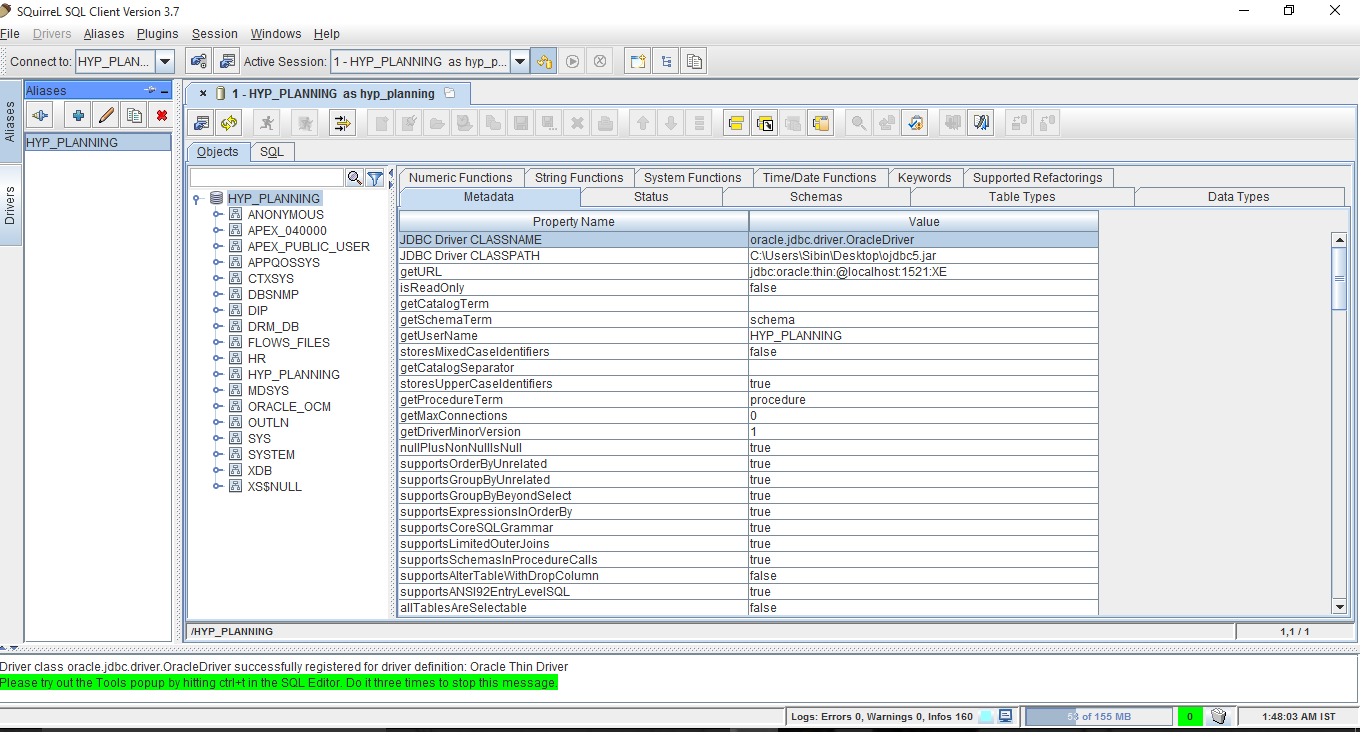
Once the connection is established, you will be able to see a bird eye view of the system from the logged in users perspective as shown in the below screenshot.