In this blog, I would be talking about data export from an
Essbase application using the DATAEXPORT command. The data would be exported to
a flat file as well as a relational system. So let us deep dive into it.
This is a snippet of data that I am interested in exporting
out an Essbase application. I have done the export using a report script.

The first thing to remember about DATAEXPORT is that it is a
calculation script command. This means that I can use it within a FIX statement
to do, what is called as a targeted export. For example, suppose that I would
be doing some changes to level0 data for a particular version and entity. I can
choose these in a fix and export the data before I do any updates in my
application. Targeted data export can also be done using a report script but
you have to remember that report script will be slightly slower than DATAEXPORT
since the formatting part is skipped.
The next snapshot shows me creating a calculation script for
running a data export of descendants of Q1(Jan, Feb, Mar) and Account level-0
members for a specific entity, scenario, version and year.
The export will be a file that is
comma-delimited and named “EssDemo_Q1_Export.txt” WITH Missing values
represented using #Mi.

On running the data export, the file is saved to the Essbase
app folder as shown in the below snapshot.

Contents
of the file is as shown in the next snapshot. Although the data is exported
out, it is not in a very clean columnar format as such.

To
export the data in a bit more cleaner format, I will use the SET
DATAEXPORTOPTIONS command and specify to export the data in column format as
shown in the below snapshot.

When
I save and ran the above script, the file did not change!!!Output did not come
in columnar format. This is because there is a flag called as
“DATAEXPORTOVERWRITEFILE” which tells Essbase calculation engine if it should
overwrite a file or not that already exists. By default, this flag is OFF. I
set it to ON as shown in the next snapshot.

On
running the calculation script, the cleaner output in column format is as shown
in the below snapshot.

Now, let us try to export the data to a relational schema
from Essbase.
The first thing that you need to do is create a
DSN for the RDBMS that you want to hit on the Essbase server. This is shown in
the below couple of snapshots. 


The
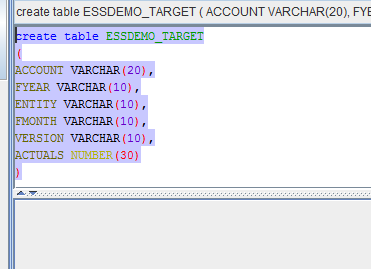
next thing that I do is create a table in the columnar export format that was
present in the file as shown in the below snapshot.
I next updated the calculation script to export to a DSN as
shown in the below snapshot to the database table that I created above.

After
running the export, the data is updated in the table as shown in the below
snapshot.

