Hyperion Planning is a cool tool built around a HOLAP
framework. It does a lot of things to ease administrative tasks from a process
perspective compared to Essbase which can be looked at as a data engine. But
there are some things which are good in Essbase but not so in Planning. One of
them is the hierarchy view for members…While EAS console allows me to see all
the metadata in a hierarchy in a single window, Planning does it one step at a
time… (This is again a case of tradeoff since communicating information of a
hierarchy having potentially thousands of members from which only 10 to 15
would be queried on web is more expensive than on a thick client since a thick
client can be optimized internally). However, sometimes you just need to see
the hierarchy in its full form, particularly with shared members since I would
like to see how they roll up, under which parent and so on…And with PBCS in the
picture, I cannot go to the backend EAS console and see the metadata…
Well, I got tired of expanding nodes in the workspace and I
thought of designing my own metadata parser…
Starters, this is alpha so not
much is available by way of error codes and so on…Still working on it…
This is the hello world for the jar file when you launch the
metadata parser…
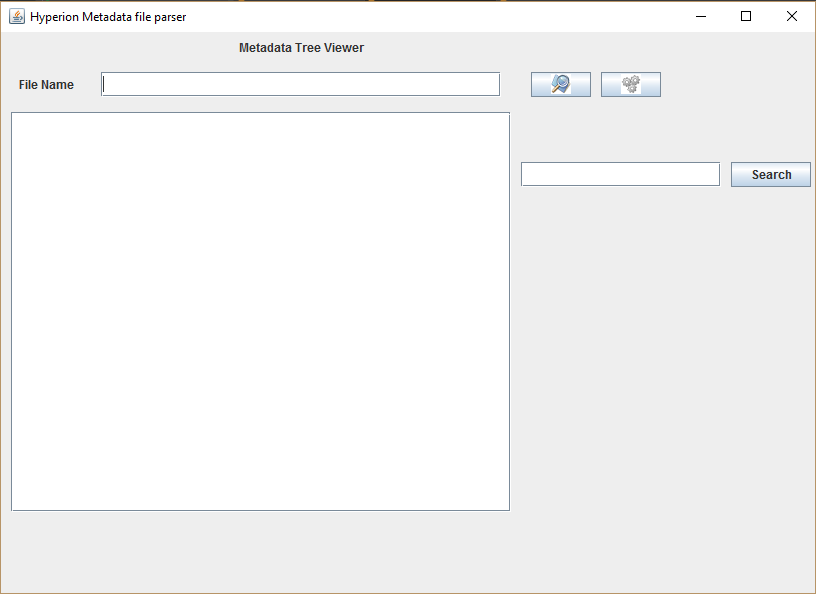
The
file name field can be manually updated to enter the full file path of a CSV
file or we can click on the Browse button that is shown below to access a file
using a Navigation wizard…

The Process button shown below is used to process the CSV
extract that you have chosen…

The search button that is shown below can be used for doing
a case insensitive search for members in the hierarchy…

If you click on the browse button, a file navigation wizard
opens up that allows you to choose a CSV planning metadata file…Below is a
snapshot of the browsing for the file and choosing one…


As soon as you hit the open button, the file would be loaded
and parsed as shown in the below snapshot….

Note that in the above snapshot, the metadata was parsed for
account dimension and it shows the metadata as a tree format…
If you manually update the full file name, you need to hit
the process button to initiate the processing of the extract….

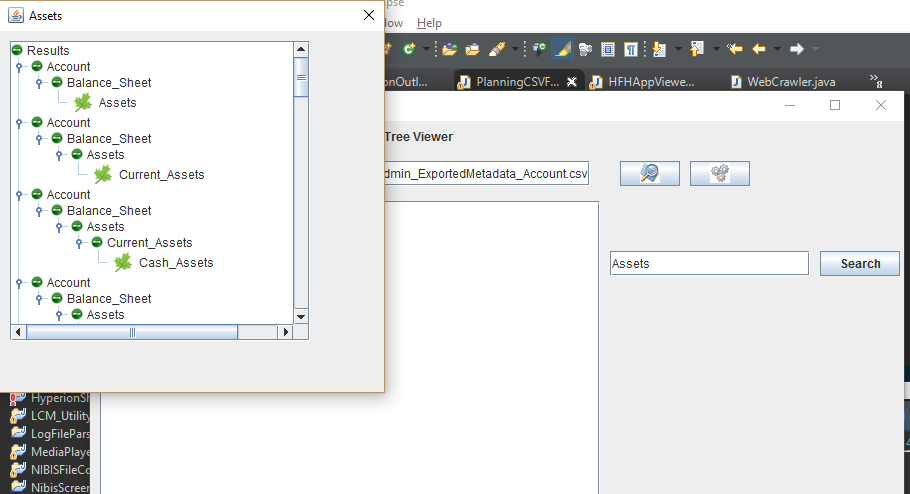
Observe that the members are shown in in breadcrumb path
since this was the main problem I wanted to solve, that is see the rollups in a
hierarchy so that I can make logical inferences and correct errors if any...
Now, for the best part….
If you click on a node in the main hierarchy, it will pop up
the list of associated properties of that member… below snapshot shows the
properties of Balance sheet member parsed and in a simple easy to read format…
Its way faster than the same thing over the web since all of
the web communication is done away with using the Planning CSV extract…

Now, I am still working on a few ifs and buts and adding a
couple of JOptionPanes for error message display and stuff… However, if you
would like to test it out let me know… I would upload it on GitHub and am
looking for folks to test it out since I might have developer bias…
Will keep you posted…


